
The Simplest Way to Accept Bangla QR Payments
Accept Bangla QR payments directly on your WooCommerce store. Customers simply scan and pay with their preferred banking or MFS app, while 1QR automatically verifies payments and updates orders instantly.
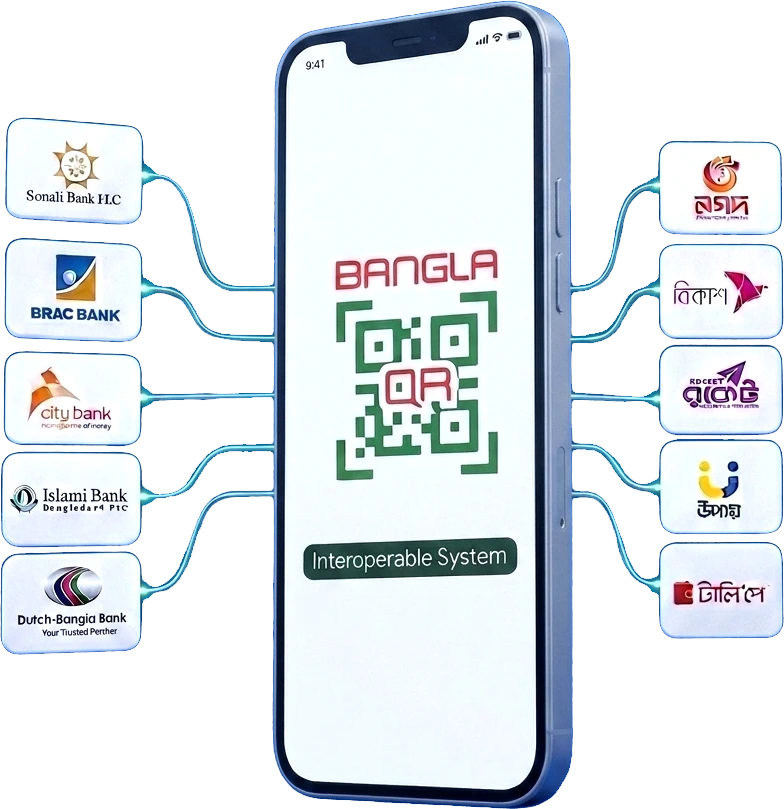
Trusted by Businesses Across Bangladesh
Powering seamless merchant checkouts with official banking rails, digital wallets, and institutional regulatory compliance.
Built for Modern WooCommerce Stores
Everything you need to accept Bangla QR payments quickly, securely and automatically.
Universal Bangla QR
Accept payments from all Bangladesh Bank supported banking apps and Mobile Financial Services using one interoperable Bangla QR code.
WooCommerce Plugin
Generate dynamic Bangla QR codes, manage WooCommerce orders and automate the complete payment workflow.
Verification Companion App
Our Android companion app securely forwards transaction notifications to your website using webhooks, enabling automatic payment verification.
Automatic Payment Verification
Transactions are automatically verified and WooCommerce orders are updated instantly without any manual work.
Easy Setup
Install the plugin, configure a few settings and start accepting Bangla QR payments without complicated setup.
Secure Architecture
Designed with secure communication, reliable processing and merchant data protection to ensure safe payment verification.
Built to simplify Bangla QR payments for every WooCommerce business.
Everything stays under your control while providing a faster, safer and more professional checkout experience.
Full Control
No third-party gateway dependency. Your payment workflow remains entirely under your own infrastructure.
No Transaction Limit
Receive unlimited transactions without artificial restrictions.
No API. No Gateway Fees.
No API integration required and no payment gateway commission for using 1QR.
Automatic Payment Verification
Transactions are verified automatically through the Verification Companion App using secure webhooks.
Save Time
Reduce repetitive manual work and process more orders efficiently.
Reduce Human Errors
Automatic verification significantly reduces manual mistakes during order processing.
Better Checkout Experience
Customers enjoy a simple, familiar QR payment experience with faster order confirmation.
Fast & Reliable Verification
Receive payment verification within seconds using a secure and reliable verification workflow.
Get started in less than 5 minutes.
A simple setup process that lets your WooCommerce store start accepting Bangla QR payments with automatic verification.
Install & Configure
Install the 1QR WooCommerce plugin and complete the simple admin settings.
Setup Android Verification App
Install android app and Configure it for automatic payment verification.
Customer Chooses Bangla QR
Customers will see Bangla QR as a payment option during WooCommerce checkout.
Customer Scans & Pays
The customer scans the QR code and completes payment. The money is deposited directly into the merchant's Bangla QR wallet.
Automatic Verification
1QR automatically verifies the transaction and updates the WooCommerce order status within seconds.
Affordable Pricing for Every Business
Choose the plan that best fits your business needs. Upgrade anytime.
3 Days
Quick test drive — validate your setup instantly.
- ✓ 1 Website Integration
- ✓ Unlimited Transactions
- ✓ Brand Name & Logo on Checkout
- ✓ Brand Name on Customer App
- ✓ Auto-fill Order Amount
- ✓ Automatic Verification
- ✓ Premium Checkout Theme
7 Days
Ideal for short-term testing and quick site integrations.
- ✓ 1 Website Integration
- ✓ Unlimited Transactions
- ✓ Brand Name & Logo on Checkout
- ✓ Brand Name on Customer App
- ✓ Auto-fill Order Amount
- ✓ Automatic Verification
- ✓ Premium Checkout Theme
1 Month
Perfect configuration for regular WooCommerce operations.
- ✓ 1 Website Integration
- ✓ Unlimited Transactions
- ✓ Brand Name & Logo on Checkout
- ✓ Brand Name on Customer App
- ✓ Auto-fill Order Amount
- ✓ Automatic Verification
- ✓ Premium Checkout Theme
1 Year
Best choice for long-term uninterrupted business stability.
- ✓ 1 Website Integration
- ✓ Unlimited Transactions
- ✓ Brand Name & Logo on Checkout
- ✓ Brand Name on Customer App
- ✓ Auto-fill Order Amount
- ✓ Automatic Verification
- ✓ Premium Checkout Theme
Frequently Asked Questions
Everything you need to know before getting started with 1QR. If you still have questions, we're always happy to help.
Need More Help?
Can't find what you need? Contact support, or read the documentation for the plugin, 1QR Dashboard, and Android app.
1QR lets your WooCommerce store accept Bangla QR checkout. The customer pays the exact amount shown, using their bank or MFS app. The 1QR Cloud Connector plugin shows checkout on your store. QR images and SMS matching live on the 1QR Dashboard. The 1QR Android app forwards payment SMS from your merchant phone to 1QR Cloud so the matching order can be verified.
After the buyer pays, your bank or MFS sends a payment SMS to the merchant phone. The 1QR app forwards that SMS to 1QR Cloud. Cloud matches it to the open checkout (amount and your Dashboard providers) and updates the WooCommerce order. If SMS does not match in time, the order can go on-hold so the customer can submit a mobile number for manual review.
1QR does not take a gateway commission on each payment. The customer pays your Bangla QR merchant account. You buy a day, month, or year license on 1qrbd.com. In WooCommerce you may add a store charge if you want — that is optional and stays with your store.
Any Bangla QR image from your bank or MFS can be uploaded on the 1QR Dashboard and set Active for checkout. Automatic SMS matching needs a Provider whose sender name matches the SMS (for example bKash, Nagad, upay, TallyPay, or Rocket as 16216). Add other senders the same way if their SMS format is configured.
The customer pays inside their own bank or MFS app. 1QR does not collect card numbers. The 1QR app sends payment SMS from senders you enable to 1QR Cloud so the open order can be matched. WooCommerce keeps the order on your store. The Dashboard never shows the QR payload.
A license is activated on one WordPress site. Buy a day, month, or year plan on 1qrbd.com, then activate the key in WooCommerce → Settings → Payments → 1QR Cloud Connector. Another shop needs its own license.
On the 1QR Dashboard: QR & SMS → Bangla QR Images to upload a QR, link a provider, and Set Active. Providers is where you enter the SMS sender name and format. WooCommerce keeps branding, optional charges, order status, and the license key.
Install the official 1QR APK on the phone that receives merchant payment SMS. In the Dashboard open Devices, create a connection key, and paste it in the app. Turn ON each sender you use. The phone does not need root — only standard SMS and notification permissions.
Checkout shows an exact amount for that session (about 5 minutes). The buyer must pay that figure. If the SMS does not match in time, the order can go on-hold. The customer can submit their mobile number for manual review. Automatic matching still needs the correct Dashboard provider and a working 1QR app.
Yes, in the WooCommerce 1QR settings: title, description, branding, and optional extra charge. There is no separate Pro theme builder. Classic and block checkout both use the 1QR Cloud Connector when the license is active.
The WooCommerce connector can show an update in Plugins → Updates when a newer ZIP is published. Download the same official ZIP from the Resources page if you prefer a manual upload. The Android app checks for a new APK separately — install only from the official 1QR download link.
No. It is a standard WooCommerce payment method and can run next to other gateways. Use only the 1QR Cloud Connector — do not keep an old 1QR / 1QRBD payment plugin active on the same store.
WordPress with WooCommerce, PHP with cURL, and HTTPS (SSL). The connector talks to 1QR Cloud (api.1qrbd.com). You also need a 1QR license, a Bangla QR image, and — for automatic verification — an Android phone with the 1QR app.
Most stores finish in about 10–15 minutes: install the Cloud Connector, activate the license, add a QR image and provider on the Dashboard, Set Active, then paste a Devices cloud key in the 1QR app. Follow the Documentation page for the full steps.
In the old store, deactivate the license in the 1QR Cloud Connector settings. Install the connector on the new site and activate the same key. Confirm QR images and providers on the 1QR Dashboard, then create a new Devices key and paste it in the app if the phone must reconnect.
Licenses are purchased on 1qrbd.com. For an invoice, renewal, or refund request, use Contact Support — do not deactivate the license until support confirms what to do.
Bangla QR Standard
Ready to Accept
Bangla QR Payments?
Transform your WooCommerce checkout experience in minutes. Eliminate checkout friction, drop acquiring overhead fees, and unify bKash, Nagad, Rocket, and retail banking nodes into a singular automated stream.